Besides the global CSL modules (see Navigating to Global CSL Modules), each CSL module is associated with a single template node. (Note that same template node, in this sense of node, can appear in multiple templates.) There are two general ways to access the CSL modules associated with a given template node: directly from the navigation pane, and from the template graph below the editing pane.
For a node that represents a process or operation (as opposed to a branch node; see Working with Tool Shop Metadata), you can access the node’s modules directly from the navigation pane as follows:
-
In the navigation pane, expand Processes, GCDs & Operations.
-
If the node represents a process, double click the process that the node represents. Otherwise, expand a process that can serve as an ancestor (in the process-operation hierarchy; see Cost Engine Details) of the desired operation.
-
Expand a GCD type to whose creation the desired operation can contribute.
-
Double click the desired operation under the expanded GCD, if it appears. Otherwise, expand an operation that can serve as ancestor (in the process/operation hierarchy) of the desired operation, and go back to step 3 to continue down the hierarchy.
-
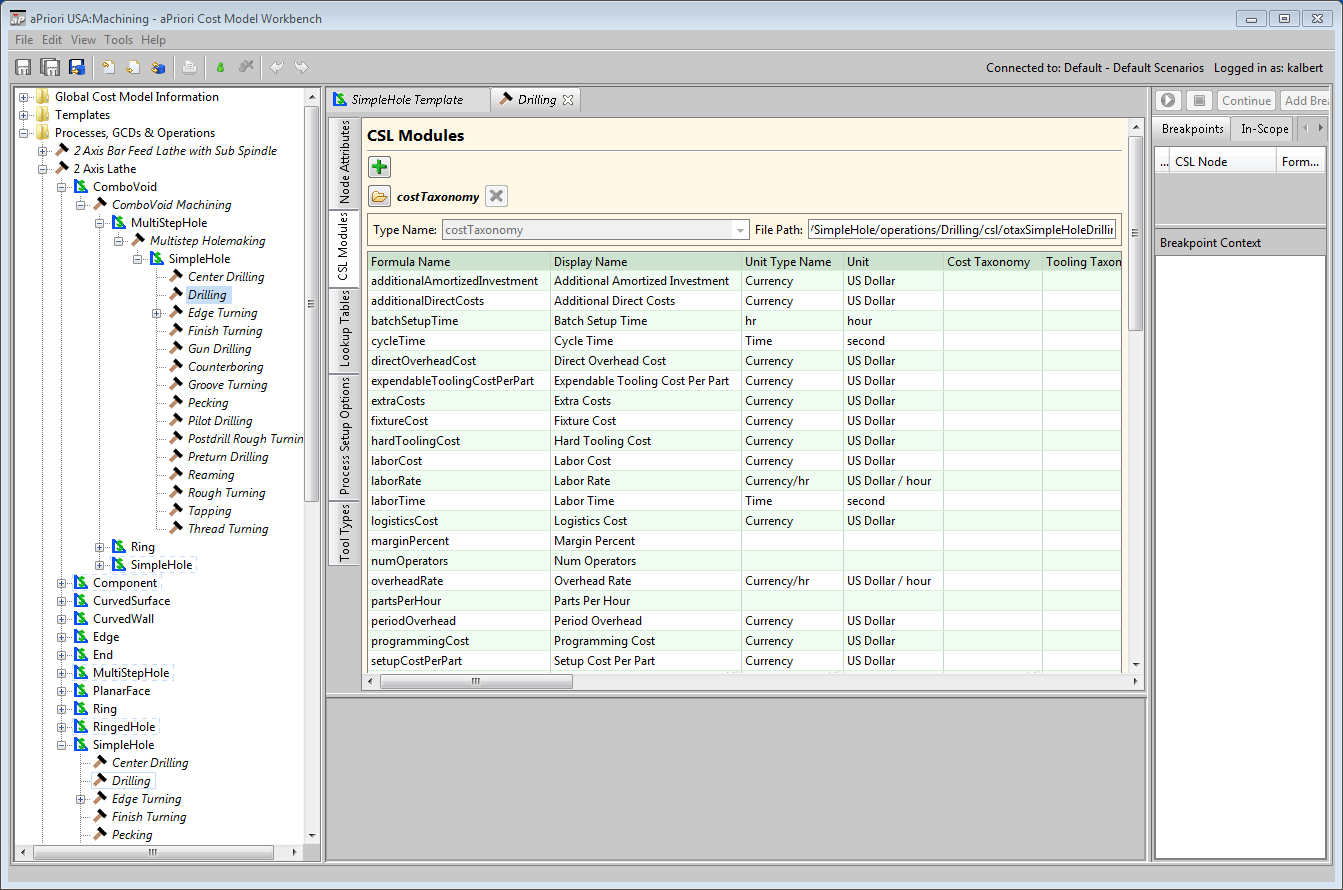
In the editing pane, select the CSL Modules tab.
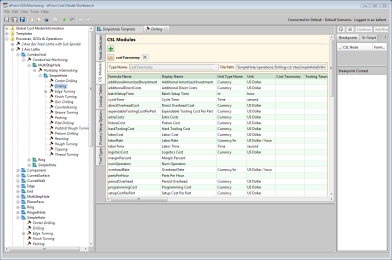
For branch nodes (see Working with Tool Shop Metadata), you can access a module for a given node directly from the navigation pane as follows:
-
In the navigation pane, expand Templates.
-
Expand a GCD type in whose template the desired node occurs.
-
Double click the desired node under the expanded GCD.
-
In the editing pane, select the CSL Modules tab.
To access, from a template graph, the modules for a given node, follow these steps:
Caution: Use this navigation method only to navigate to processes, operations, or branch nodes that you are certain exist in the navigation pane. Some template nodes exist only in a template (for organizational purposes) and have no associated data or logic in the cost model. Using this method on such a node unnecessarily creates an empty node in the navigation pane and clutters the cost model.
-
In the navigation pane, expand Templates.
-
Double click a GCD type in whose template the desired node occurs. The template specification appears in the editing pane, and the template graph appears in the pane below it.

-
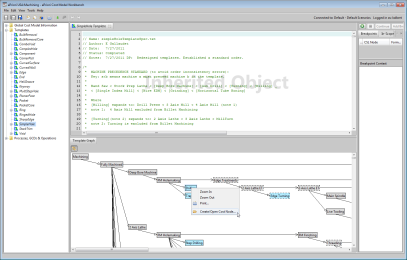
In the template graph, right click on the desired node, and select Create/Open Cost Node.
-
In the editing pane, select the CSL Modules tab.
For each CSL module, the editing pane displays the following:
-
Module name
-
Module type name
-
File path for the module
-
Table of output formulas
-
Folder icon for module viewing or editing
-
X symbol for module deletion
The editing pane also displays a + icon for adding a module. See Adding CSL Modules.